

Hey there! As a supplier of Multifunction Boards, I often get asked about how to transfer data to and from these boards. It's a crucial aspect, especially in today's tech - savvy world where data is king. So, let's dive right into it and break down the process.
Understanding the Basics
First off, it's important to know what a Multifunction Board is. It's a versatile piece of hardware that can perform multiple functions like data storage, processing, and communication. Before we start talking about data transfer, we need to understand the board's capabilities and the types of data it can handle.
Most Multifunction Boards support various data formats, including text, images, and even video. The board usually has different ports and interfaces to connect to other devices. These interfaces can be USB, Ethernet, or even wireless connections like Wi - Fi or Bluetooth.
Transferring Data to the Multifunction Board
Using USB
One of the most common ways to transfer data to a Multifunction Board is via USB. It's simple and widely supported. First, make sure your board has a USB port. If it does, you can connect a USB drive that contains the data you want to transfer.
Here's how you do it:
- Insert the USB drive into the board's USB port.
- The board should detect the drive automatically. Some boards may require you to run a specific software or application to access the data on the drive.
- Once the drive is recognized, you can copy the data from the USB drive to the board's storage. This can usually be done through a file management system on the board.
Ethernet Connection
If you have a large amount of data to transfer or need a more stable connection, an Ethernet connection might be a better option. To use an Ethernet connection:
- Connect one end of an Ethernet cable to the board's Ethernet port and the other end to your computer or network device.
- Make sure both the board and the connected device are on the same network. You may need to configure the network settings on the board, such as setting the IP address.
- Once the network connection is established, you can use network - based file sharing protocols like FTP (File Transfer Protocol) or SMB (Server Message Block) to transfer data. For example, if you're using FTP, you can open an FTP client on your computer, enter the board's IP address, and log in with the appropriate credentials. Then, you can transfer files between your computer and the board.
Wireless Transfer
Wireless transfer is convenient, especially if you don't want to deal with cables. Most Multifunction Boards support Wi - Fi or Bluetooth.
For Wi - Fi transfer:
- Connect the board to your Wi - Fi network. You'll need to enter the network name (SSID) and password.
- On your device (like a smartphone or laptop), connect to the same Wi - Fi network.
- Use a file - sharing app or the board's built - in wireless transfer feature to send data to the board.
For Bluetooth transfer:
- Enable Bluetooth on both the board and your device.
- Pair the two devices. This usually involves entering a passcode on one of the devices.
- Once paired, you can send data from your device to the board using the Bluetooth file - sharing option.
Transferring Data from the Multifunction Board
Back to a USB Drive
If you want to transfer data from the board to a USB drive, the process is similar to transferring data to the board.
- Insert the USB drive into the board's USB port.
- Open the file management system on the board and locate the data you want to transfer.
- Copy the data to the USB drive.
To a Computer via Ethernet
- Connect the board and the computer with an Ethernet cable.
- Set up the network connection as described earlier.
- Use a network - based file - sharing protocol to transfer the data from the board to the computer.
Wireless Transfer to Another Device
Just like transferring data to the board wirelessly, you can also transfer data from the board to another device using Wi - Fi or Bluetooth. Make sure both devices are paired or connected to the same network, and then use the appropriate file - sharing feature to send the data.
Troubleshooting
Sometimes, data transfer may not go as smoothly as expected. Here are some common issues and how to fix them:
- Connection problems: If the board doesn't detect a USB drive or can't connect to a network, check the cables, make sure the ports are clean, and verify the network settings.
- Data transfer errors: If you're getting errors while transferring data, it could be due to a corrupted file or insufficient storage space on the board. Try transferring smaller files or freeing up space on the board.
Related Products
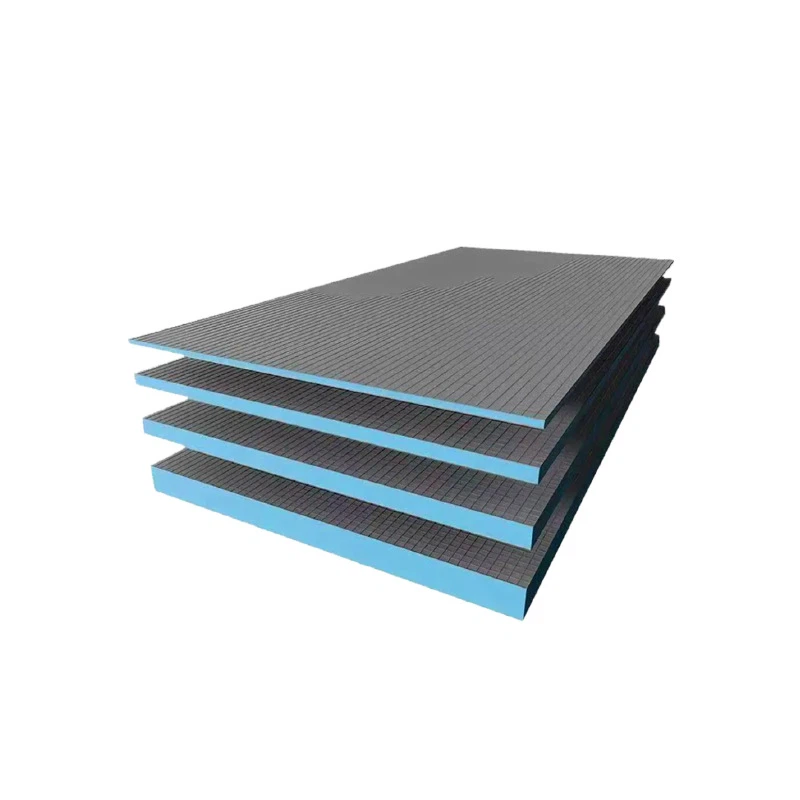
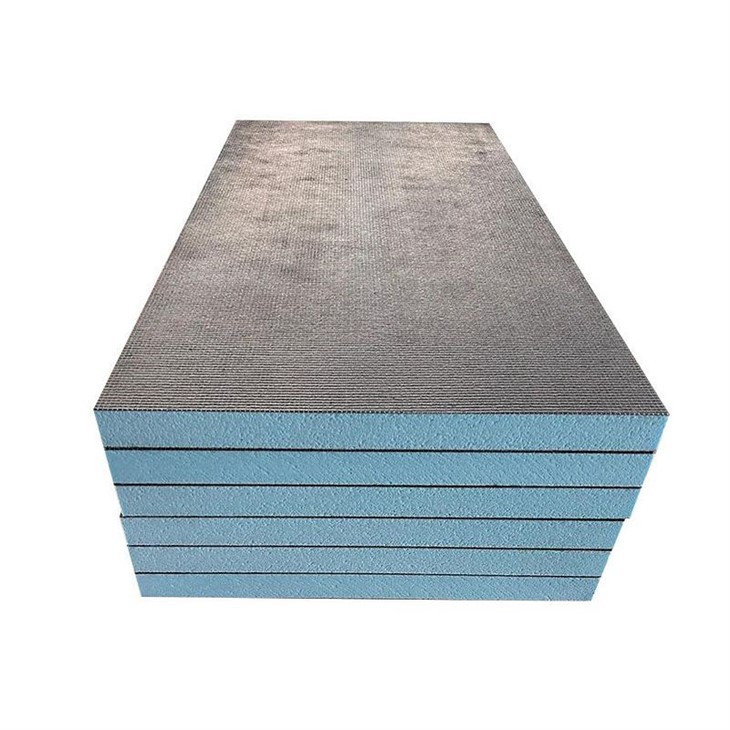
If you're interested in other types of functional boards, we also offer Fireproof Sound Insulation Board, Styrofoam Tile Backer Board, and Wall Backing Board. These boards have their own unique features and applications.
Conclusion
Transferring data to and from a Multifunction Board is not as complicated as it may seem. By understanding the board's interfaces and following the right steps, you can easily move data in and out of the board. Whether you're using USB, Ethernet, or wireless connections, each method has its own advantages.
If you're interested in purchasing our Multifunction Boards or have any questions about data transfer or our other products, feel free to reach out for a procurement discussion. We're here to help you make the most of our products and ensure a smooth data transfer experience.
References
- General knowledge about Multifunction Boards and data transfer.
- Manufacturer's documentation for the Multifunction Boards.